Preview Filled with sample values. Click to enlarge.
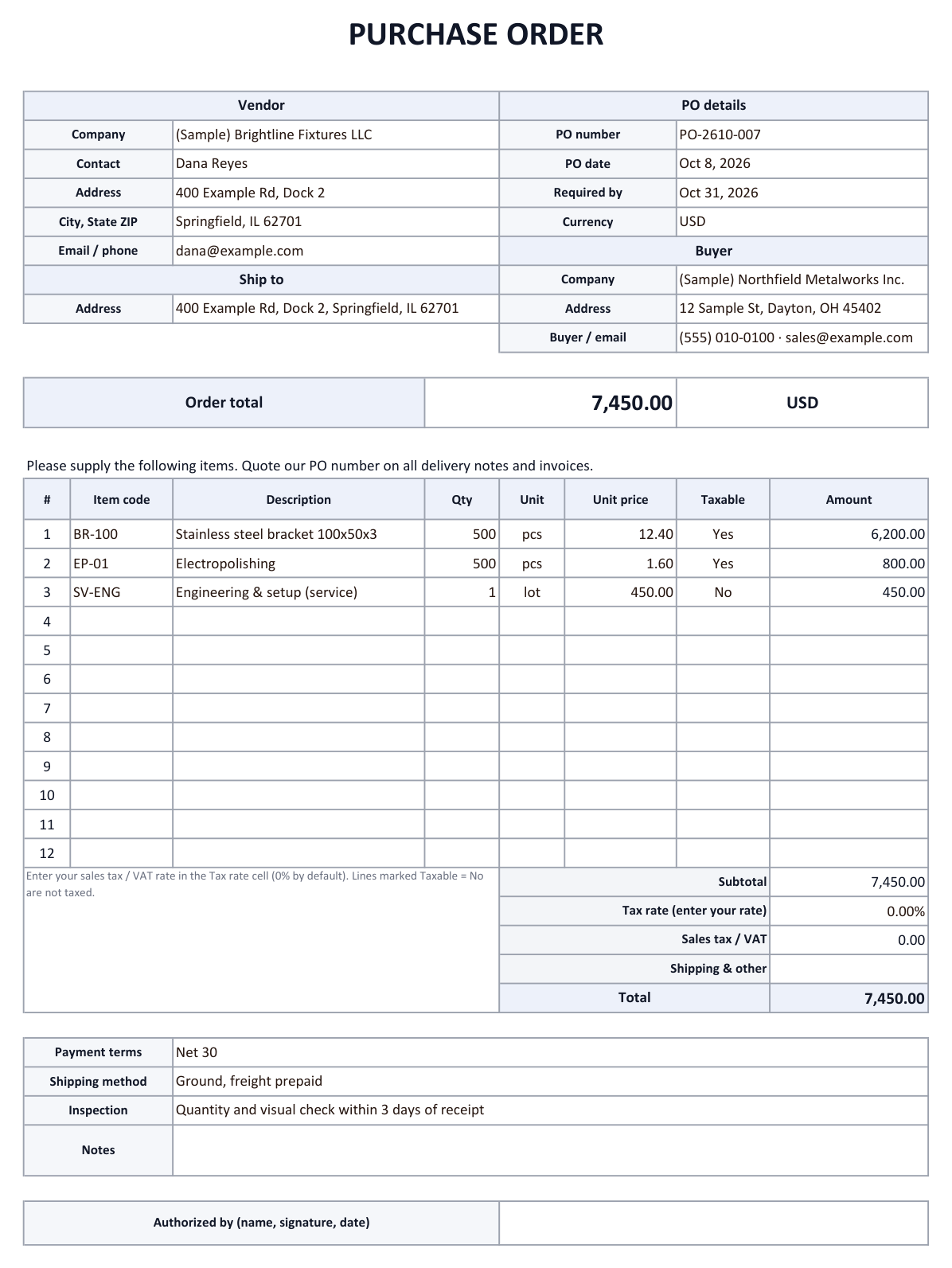

A purchase order (PO) is the buyer's written order to a vendor, stating items, quantities, prices, the required-by date, the delivery address and payment terms. This template has 12 item lines with automatic amounts and totals and prints on one page. The PO log sheet keeps every order you place; orders past their required-by date that are not received are shown in red and counted at the top.
What goes on a purchase order?
| Block | Fields | Why |
|---|---|---|
| Vendor | Company · contact · address · email / phone | Who supplies the goods |
| Ship to | Delivery address | Where the goods must arrive |
| PO details | PO number · PO date · required by · currency | The vendor quotes the PO number on delivery notes and invoices |
| Buyer | Your company · address · buyer | Who placed the order |
| Items | Item code · description · qty · unit · unit price | One line per item |
| Totals | Subtotal · tax rate · tax · shipping & other · total | The amount you agree to pay |
| Terms | Payment terms · shipping method · inspection | How and when goods are accepted and paid |
How to use the Excel template
- Fill in vendor, ship-to and buyerEnter the vendor, the delivery address, PO number, PO date, required-by date and your buyer details.
- Add the itemsEnter description, quantity, unit and unit price. Line amounts and totals are calculated automatically. If the vendor charges sales tax or VAT, enter the rate in the Tax rate cell.
- Add terms and sendFill in payment terms, shipping method and inspection terms, save as PDF and email it to the vendor.
- Track it in the PO logAdd a row to the PO log and pick a status: Ordered, Confirmed, Partly received, Received or Cancelled. Late orders turn red and are counted at the top.
Tips for purchase orders
- One number per order: Use a PO number sequence and ask vendors to quote it on every delivery note and invoice; matching gets much easier.
- Date, not "ASAP": Write a required-by date so lateness can be measured.
- Inspection terms: Say how long you have to check quantity and condition after delivery.
- Partial deliveries: Use the Partly received status and note what is still open.
Receiving purchase orders from customers by email?
If you are on the selling side, customer POs often arrive as PDF, Excel or photo attachments. AiutoForm reads them with AI, adds each line to an order sheet in Excel or Google Sheets and puts the due date on your Google Calendar.
See the parts manufacturer example or try the demo.
Frequently asked questions
What is the difference between a quote and a purchase order?
The vendor sends the quote with prices and terms; the buyer sends the purchase order to accept and order. You can download the quote template too.
Does it work in Google Sheets?
Yes. Totals, drop-downs and the late-order highlighting all work after you open the file with Google Sheets.
How do I add more than 12 lines?
Insert rows above the last item line and copy the amount formula from the line above. The totals range grows with it.
Can I use this template for my business?
Yes. It is free to download, change and use.
Will it work with your inbox?
Tell us which email service and document formats you use, and we will show you how it fits.